
How to set up the Chat Bot
1. Open the Chat Bot
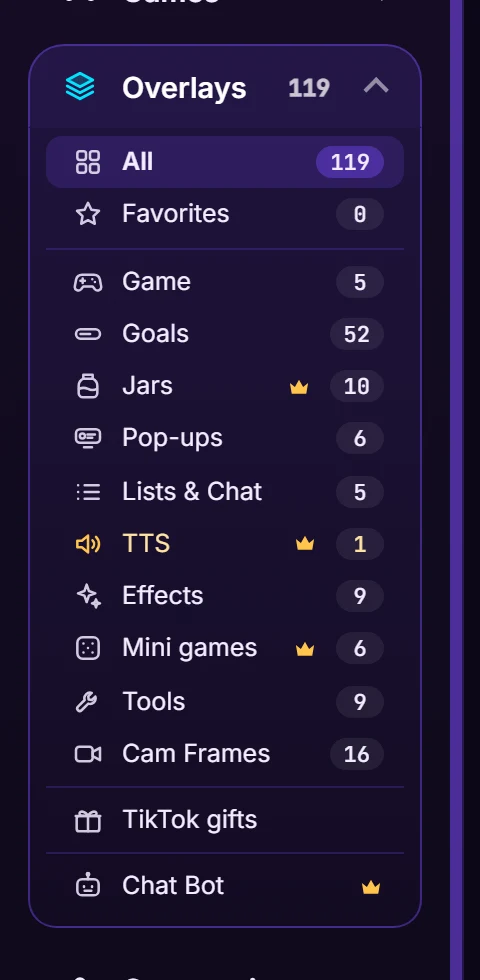
Open the TikPlay Launcher, click "Overlays" in the sidebar and then "Chat Bot". It sits right under "TikTok gifts".
2. Sign in with TikTok
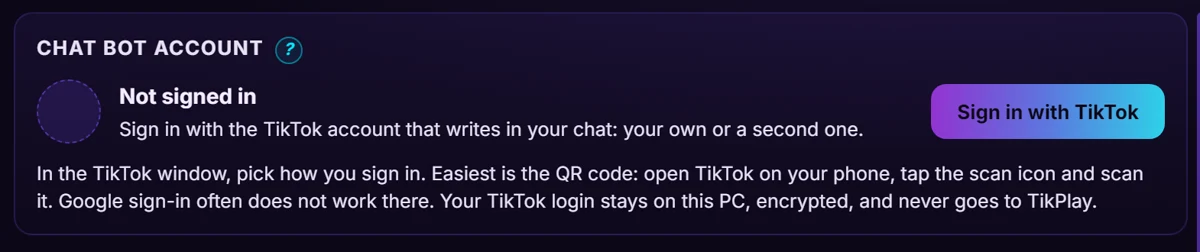
Click "Sign in with TikTok" and choose how you sign in. The easiest way is the QR code: open TikTok on your phone, tap the scan icon and scan it. You can use your own account or a second account that writes for you. Your TikTok login stays on your PC and never goes to TikPlay.
3. Switch it on and connect
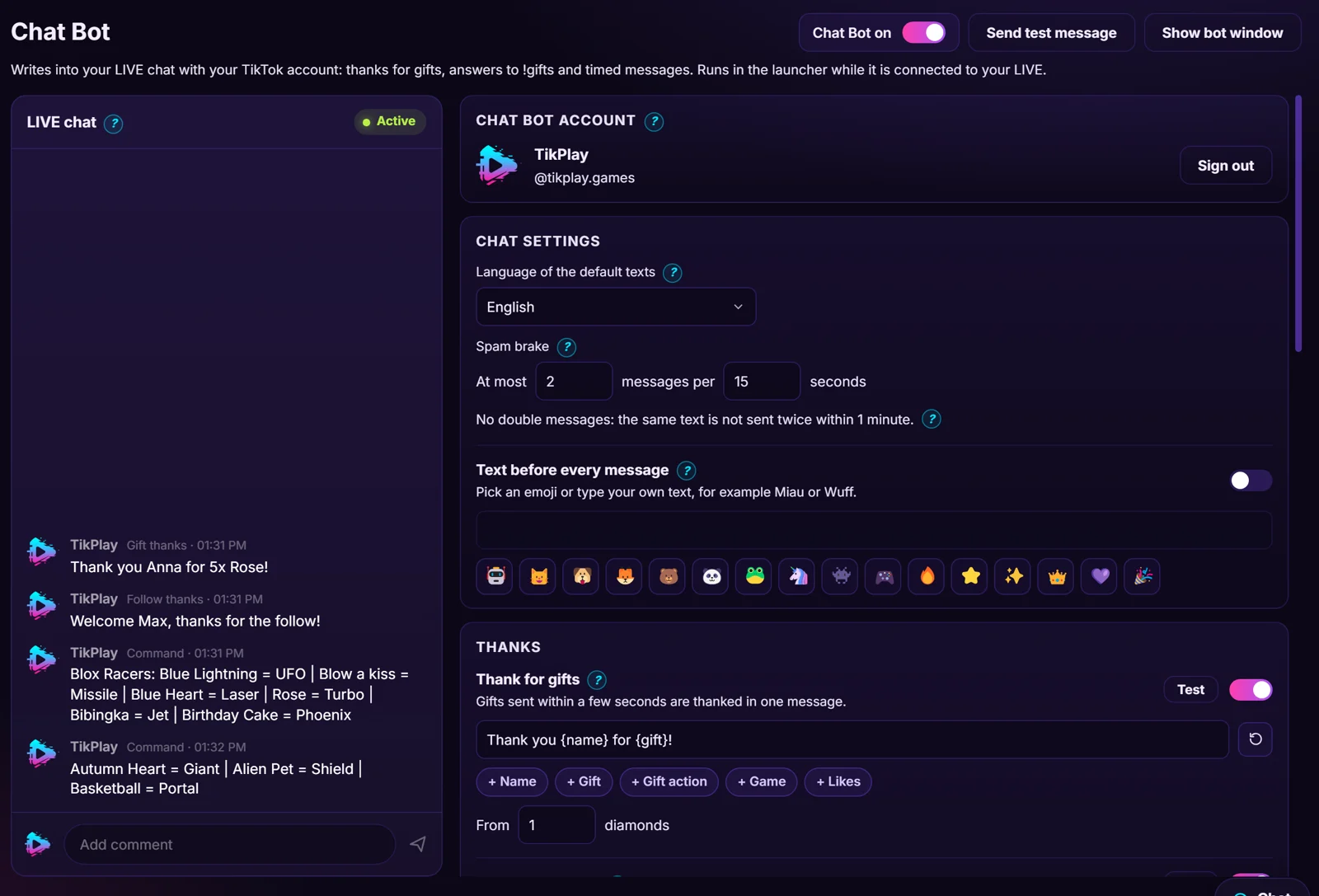
Switch on "Chat Bot on" at the top, go LIVE on TikTok and then click "Connect with TikTok" at the bottom left of the launcher. As soon as the LIVE chat on the left says "Active", the bot writes in your chat. Click "Send test message" to check it.
4. Choose what the bot does
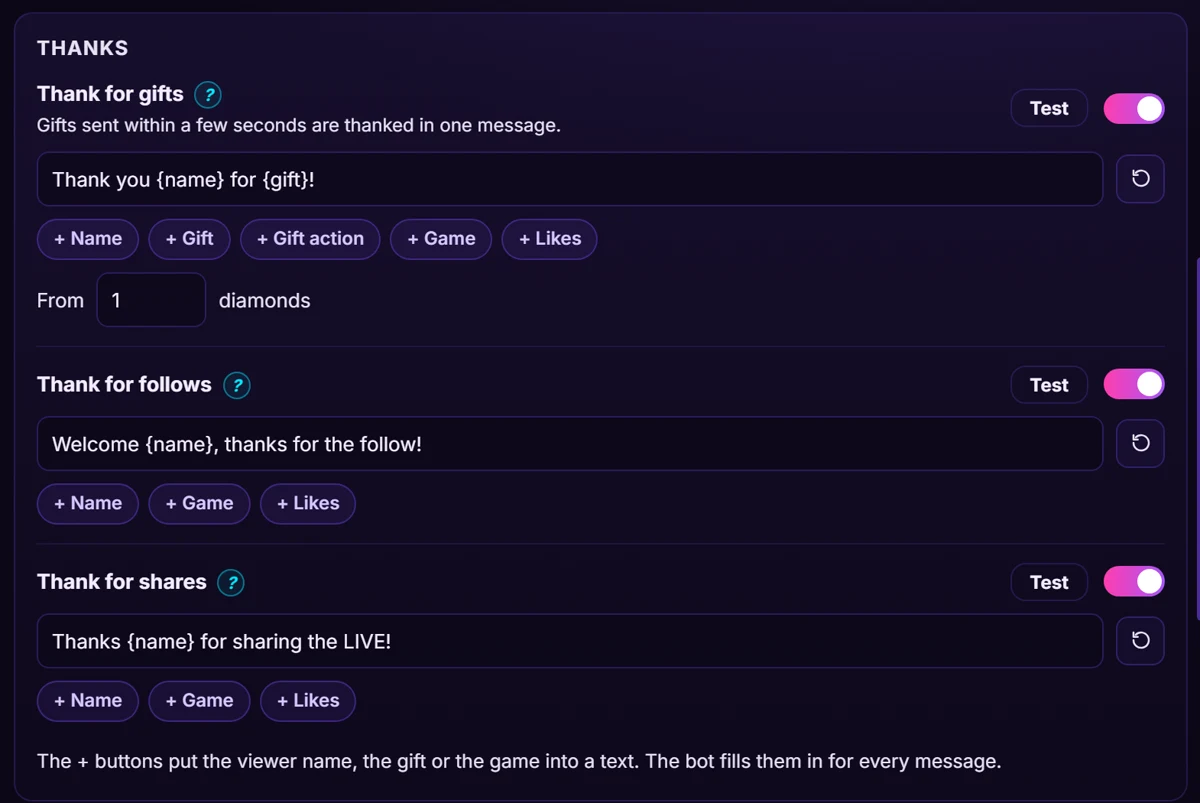
Switch on what you want: thanks for gifts, follows and shares, answers to !gifts, !game and !help, your own commands, timed messages and messages for a quiet chat. Every text is already filled in and you can change it; the + buttons put the viewer's name, the gift or the game into it. "Test" next to each rule sends it once to your LIVE.
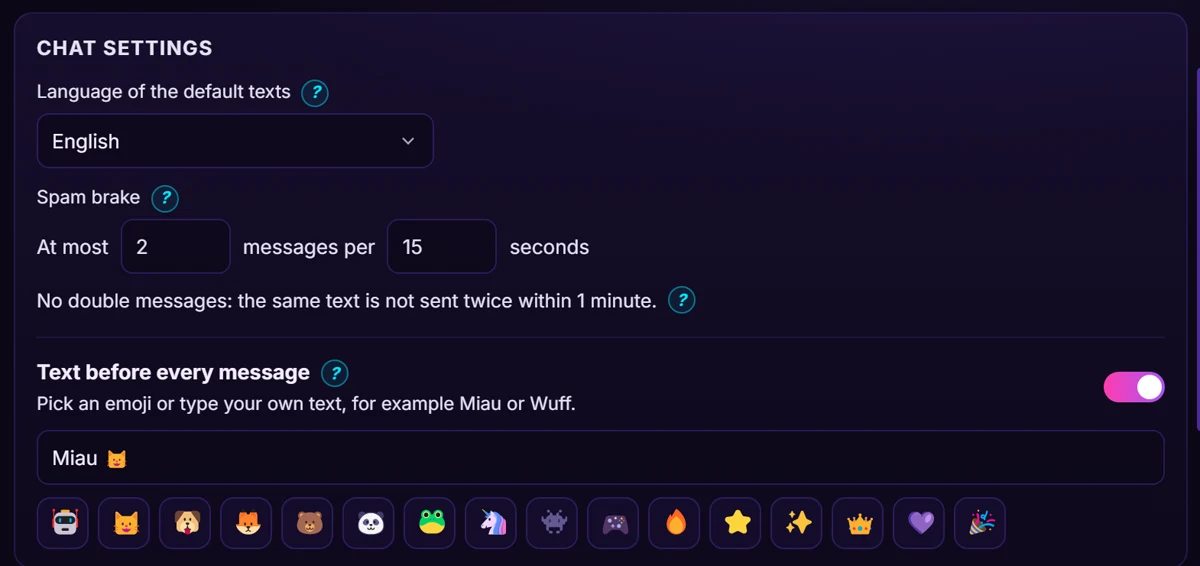
5. Fine-tune it
Under "Chat settings" you set the language of the default texts, the spam brake (at most 2 messages per 15 seconds by default) and a text before every message, for example an emoji or "Miau". The bot never sends the same text twice within a minute.
The Chat Bot is included with Super. Have fun with your chat!