
So richtest du deinen ersten Stream ein
Dieser Guide zeigt dir, wie du deinen allerersten Stream auf TikPlay startklar machst - schnell und einfach.
1. TikTok-ID prüfen
Stell sicher, dass deine TikTok-ID korrekt hinterlegt ist, in deinem Profil unter "Konto". Zum ganzen TikTok-ID-Guide
2. Overlay hinzufügen
Kopier deinen Overlay-Link und füg ihn als browser/link source in deiner Streaming-Software hinzu (OBS oder TikTok Live Studio). Zum ganzen Overlay-Guide
3. TikPlay-Browser hinzufügen
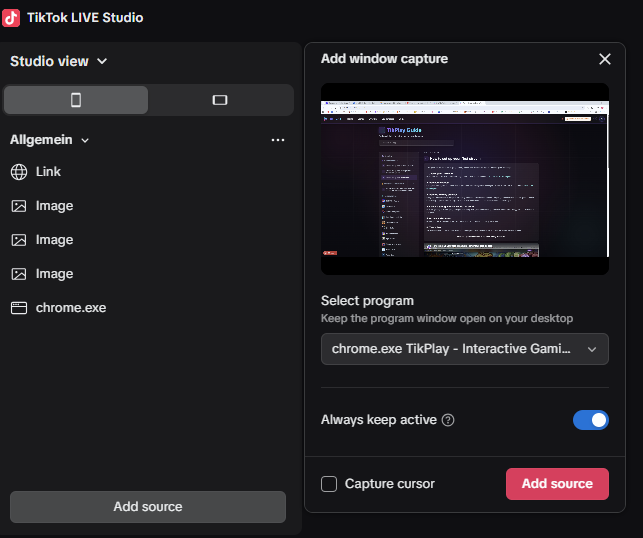
Bring den TikPlay-Browser in deine Streaming-Software (TikTok Live Studio oder OBS), damit deine Zuschauer das Spiel sehen. Du kannst Display Capture, Window Capture oder eine Link-Quelle nutzen - nimm, was für dich am besten passt.
4. Spiel wählen und Config einrichten
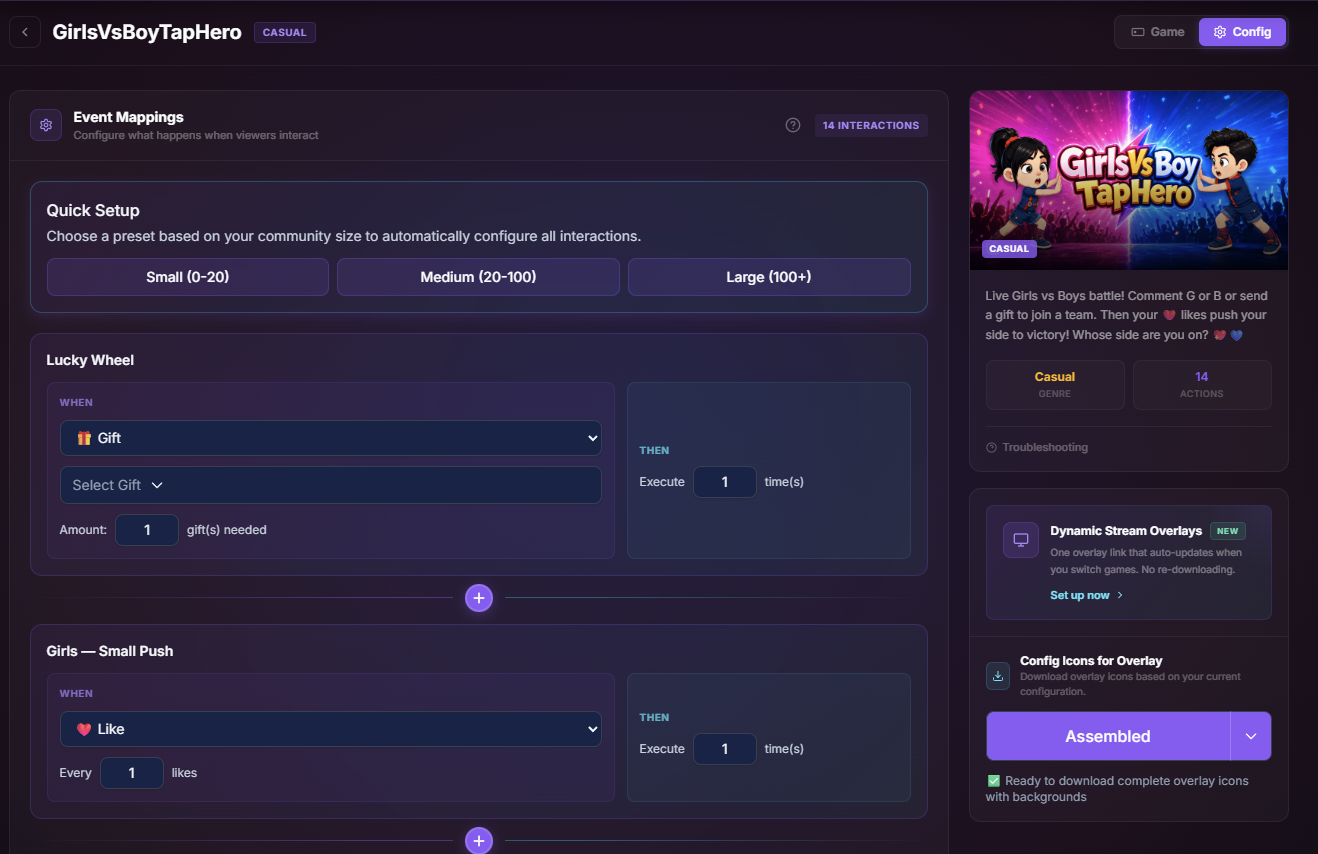
Wähl das Spiel, das du spielen willst, und öffne seine Config. Hier legst du fest, was deine Zuschauer senden oder tun müssen, um die Interaktionen im Spiel auszulösen.
5. Live gehen und verbinden
Geh zuerst auf TikTok live. Du musst live sein, bevor du verbinden kannst. Sobald dein Live läuft, geh zurück zu TikPlay und klick auf "Connect". Wenn du noch nicht live bist, klappt es nicht.
6. Live testen
Leg eine Interaktion auf "Like" und teste es selbst in deinem Stream - schick einen Like und schau, wie es live im Spiel ausgelöst wird.
Das war's - dein erster Stream läuft. Viel Spaß!