
Come impostare la tua prima diretta
Questa guida ti mostra come preparare la tua primissima diretta su TikPlay - veloce e semplice.
1. Controlla il tuo ID TikTok
Assicurati che il tuo ID TikTok sia impostato correttamente, nel tuo profilo nella scheda "Account". Vedi la guida completa all'ID TikTok
2. Aggiungi il tuo overlay
Copia il link del tuo overlay e aggiungilo come browser/link source nel tuo software di streaming (OBS o TikTok Live Studio). Vedi la guida completa agli overlay
3. Aggiungi il browser TikPlay
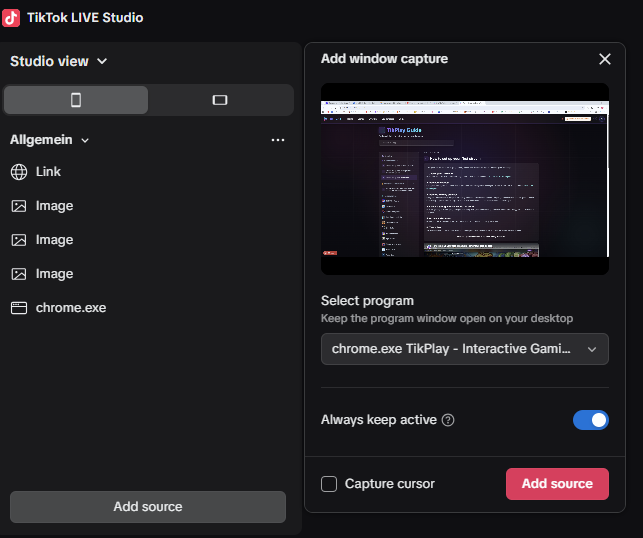
Porta il browser TikPlay nel tuo software di streaming (TikTok Live Studio o OBS) così i tuoi spettatori vedono il gioco. Puoi usare Display Capture, Window Capture o aggiungerlo come sorgente Link - scegli quello che funziona meglio per te.
4. Scegli il gioco e imposta la config
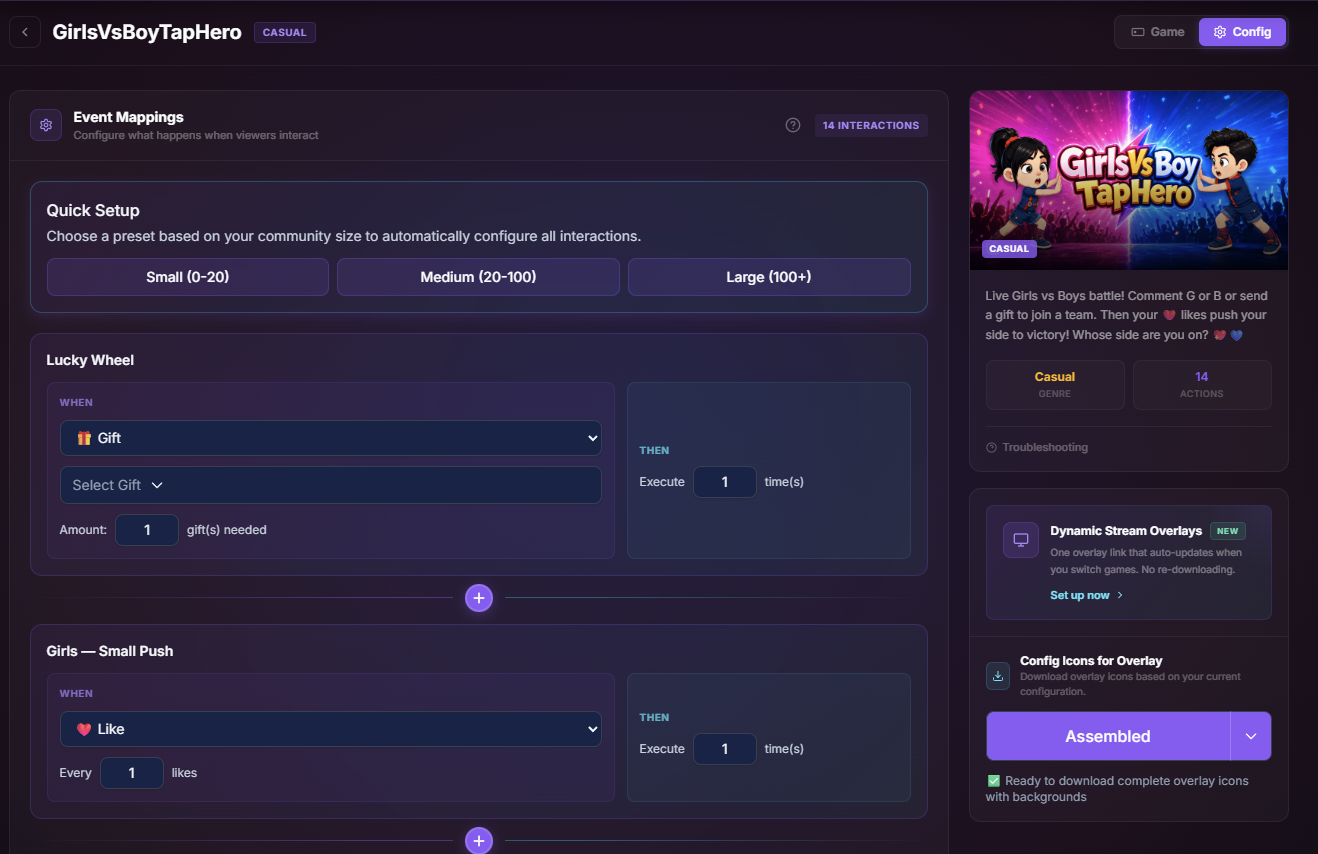
Scegli il gioco a cui vuoi giocare e apri la sua config. Qui decidi cosa devono inviare o fare i tuoi spettatori per attivare le interazioni nel gioco.
5. Vai in diretta e connetti
Prima vai in diretta su TikTok. Devi essere in diretta prima di poterti connettere. Quando la tua diretta è attiva, torna su TikPlay e clicca su "Connect". Se non sei ancora in diretta, non funzionerà.
6. Provalo in diretta
Imposta un'interazione su "Like" e provala tu stesso nella tua diretta - invia un like e guardala attivarsi dal vivo nel gioco.
Ecco fatto - la tua prima diretta è attiva. Buon divertimento!